
Скачать 10AppsManager – бесплатный, безопасный инструмент для удаления и переустановки приложений Windows 10 Store
Ищете надёжный способ управлять предустановленными приложениями Windows 10? 10AppsManager — лёгкая, бесплатная утилита, предоставляющая полный контроль над встроенными приложениями Windows Store. Разработан Lavish Thakkar, этот мощный инструмент позволяет без усилий удалять и переустанавливать стандартные приложения, такие как Weather, Music, Mail, Maps, Sports, News и Money — приложения, которые Microsoft не позволяет удалить через обычные настройки. В отличие от других средств, 10AppsManager не просто скрывает эти приложения; он полностью удаляет их, освобождая системные ресурсы и уменьшая беспорядок. Программа портативна, её можно запускать без установки — просто извлеките папку и запустите приложение. Благодаря чистому, интуитивному интерфейсу даже новички легко справятся. Будь вы продвинутый пользователь, оптимизирующий производительность, или обычный пользователь, желающий более чистый рабочий стол, 10AppsManager обеспечивает бесшовный опыт. Это обязательный инструмент для тех, кто ищет безопасный, быстрый и эффективный способ управления нежелательными приложениями Windows 10. Скачайте сейчас и возьмите контроль над своей системой.
Лёгкое управление встроенными приложениями Windows Store
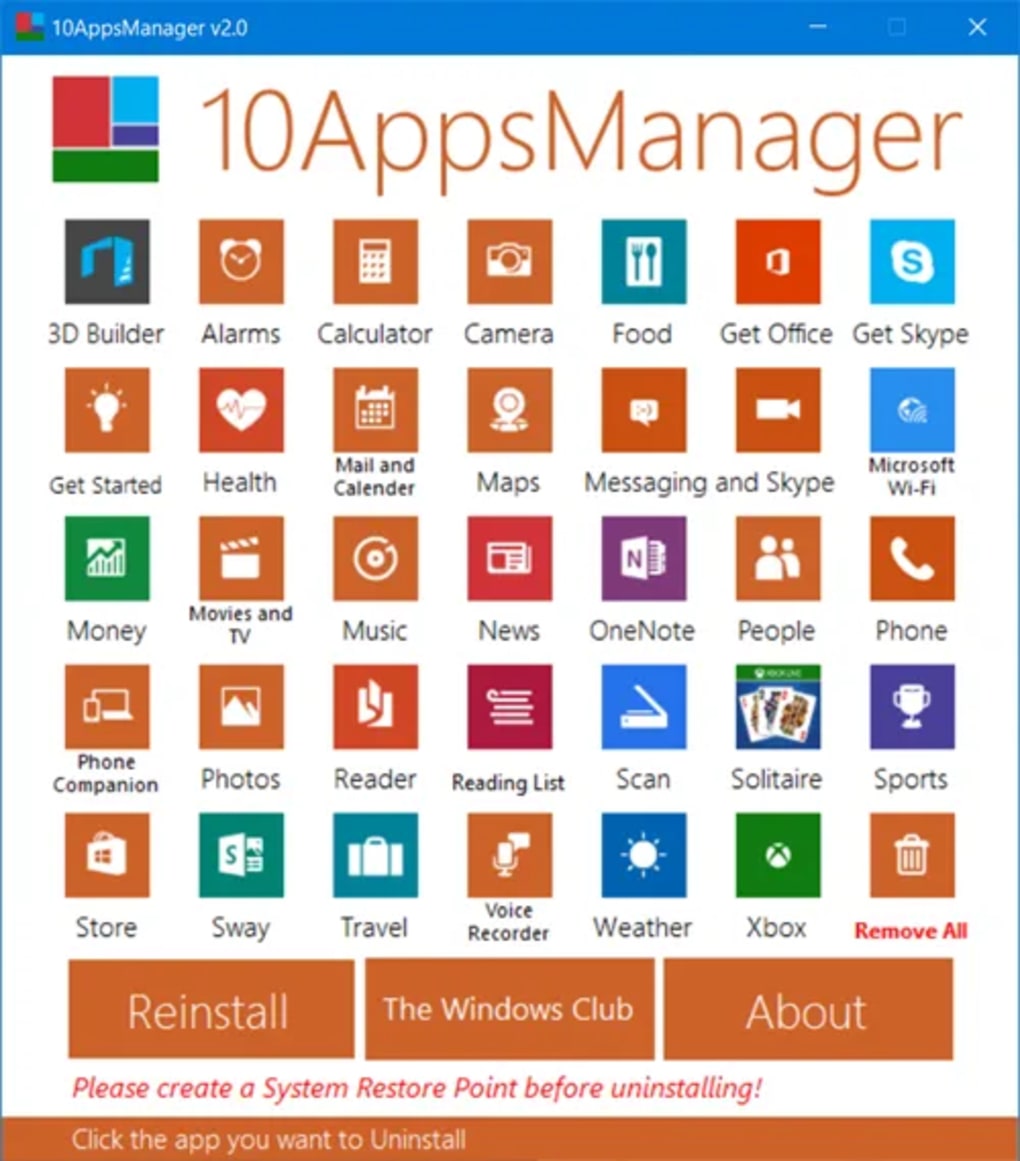
One of the biggest frustrations for Windows 10 users is the inability to remove preinstalled apps—those default programs that come with the OS and can’t be deleted through the standard Settings menu. While you can hide them, they still occupy space, run in the background, and can slow down your system. 10AppsManager solves this problem with a simple yet powerful solution. The tool provides a comprehensive list of all built-in Windows Store applications, including popular ones like Weather, Music, Mail, Maps, Sports, News, and Money. With just a few clicks, you can uninstall any of these apps permanently, not just hide them. The process is incredibly fast and intuitive—select the app you want to remove, click the “Uninstall” button, and the tool handles the rest. A success message appears instantly, confirming the removal. But the functionality doesn’t stop at uninstallation. 10AppsManager also allows you to reinstall any previously uninstalled app with equal ease. This is particularly useful if you change your mind or need an app later. Simply select the app from the list and click “Install.” The tool will restore it to your system, and a system restart is usually required to see the changes take effect. This two-way control gives you full flexibility and peace of mind. Whether you’re cleaning up your system for better performance or customizing your Windows 10 experience, 10AppsManager streamlines the entire process. The interface is clean and user-friendly, making it accessible for both beginners and advanced users. Best of all, it’s completely free and doesn’t require installation—ideal for users who prefer portable software. You can run it from a USB drive or desktop folder without leaving traces on your system.Portable & Lightweight – No Installation Required
One of the standout features of 10AppsManager is its portability. Unlike many software tools that require installation and leave behind registry entries, 10AppsManager is designed to be used without any setup. All you need to do is download the ZIP file, extract it to any folder on your Windows PC, and launch the executable file. There’s no need to go through lengthy installation steps or worry about leftover files. This makes it perfect for users who value privacy, system cleanliness, or those who use multiple computers and want a consistent tool across devices. The lightweight nature of the software ensures it doesn’t consume significant system resources. It runs smoothly on older machines and doesn’t slow down your PC during operation. Because it’s a standalone application, it can be easily backed up or moved between devices. This is especially useful for IT professionals, system administrators, or anyone managing multiple Windows 10 systems. The tool works seamlessly on Windows 10 (all editions), including Home, Pro, and Enterprise. It’s also compatible with Windows 11, though users should always test in a safe environment due to its experimental nature. Another major advantage is that 10AppsManager doesn’t require admin rights to run in some cases—though you may need elevated privileges for uninstalling system apps. This flexibility makes it accessible even in restricted environments. The tool also includes a built-in backup feature, allowing you to create a restore point before making changes. This is a crucial safety measure, especially since modifying system apps can have unintended consequences. Overall, the portability and low footprint make 10AppsManager a standout choice for anyone seeking a secure, efficient, and hassle-free way to manage Windows 10 apps.Compatibility, Installation, and Usage Guide
Using 10AppsManager is straightforward, even for users with limited technical knowledge. The tool is compatible with Windows 10 and Windows 11 (x64 and x86 versions). It works across all editions, including Home, Pro, and Enterprise, making it accessible to a wide range of users. However, due to its experimental nature, it’s highly recommended to create a system restore point before using the tool. This ensures you can revert your system if something goes wrong. To get started, download the latest version from the official source. Extract the ZIP file to a folder of your choice—such as your Desktop or Downloads folder. Once extracted, locate the10AppsManager.exe file and double-click it to launch the application. The interface displays a list of all installed Windows Store apps, categorized by type. You can sort them alphabetically or by size. To uninstall an app, simply check the box next to it and click the “Uninstall” button. Confirm the action when prompted. The tool will remove the app and display a success message.
To reinstall an app, go to the “Reinstall” tab, select the app from the list, and click “Install.” After installation, restart your PC to see the app reappear in the Start menu. Some apps may require a reboot to fully activate. The tool also includes a “Refresh” button to reload the app list if changes aren’t reflected immediately. For advanced users, there’s a command-line mode for automated tasks, though this is optional. Always back up your system before making changes, especially when dealing with system-level apps. The entire process is secure and reversible, making 10AppsManager a safe choice for managing your Windows 10 environment.
Key Features of 10AppsManager
- Uninstall default Windows Store apps permanently (not just hide)
- Reinstall uninstalled apps with a single click
- Portable – no installation required
- Supports Windows 10 and Windows 11 (x64/x86)
- Clean, intuitive interface for all users
- Built-in backup and restore functionality
- Lightweight and fast performance
- Free and secure to use
Pros and Cons of 10AppsManager
- Pros:
- Free to download and use with no hidden costs
- Portable – runs without installation
- Simple, intuitive interface suitable for beginners
- Efficiently removes unwanted apps that Windows doesn’t allow
- Allows reinstallation of previously uninstalled apps
- Lightweight and doesn’t slow down your system
- Supports Windows 10 and Windows 11
- Cons:
- Experimental tool – use with caution
- May cause system instability if used improperly
- Some apps may not reinstall correctly
- Requires system restart after uninstall/reinstall
- Not officially supported by Microsoft







